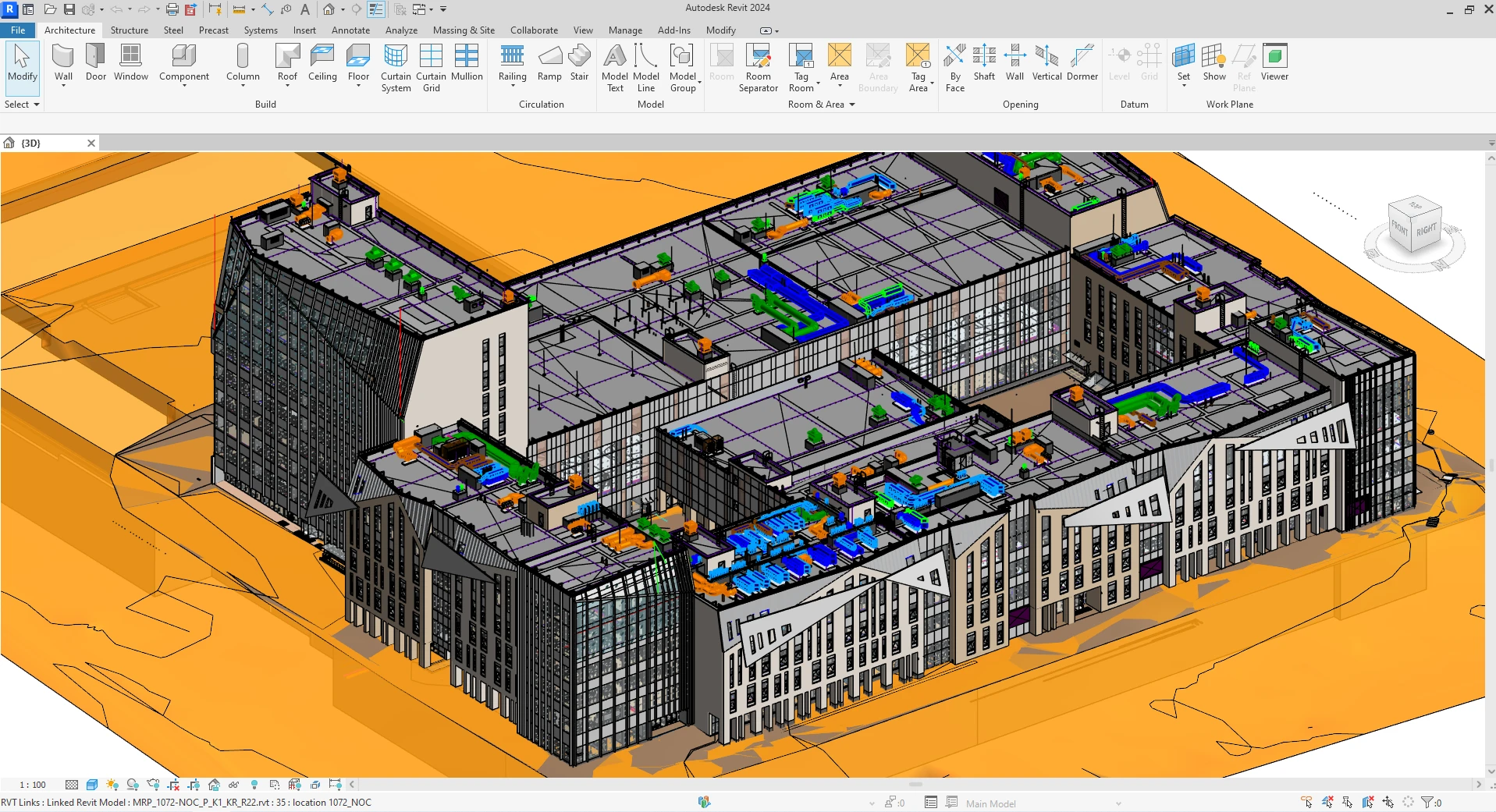
Today, I want to dive into a topic that has been both challenging and rewarding for me—writing plugins for Revit using C#. While I develop plugins for various platforms, Revit has truly captivated me with its versatility, thanks in large part to the powerful API developed by Autodesk.
If you're just starting out with Revit plugin development, you're likely to encounter some roadblocks that aren't easily solved with a quick online search.
The Challenge of Asynchronous Operations in Revit
One common hurdle you might face is performing asynchronous operations correctly. It's crucial to handle these operations properly to catch any exceptions that might occur. To help with this, I've written an extension code for managing Async/Await within a single thread.
Understanding the Problem
Revit API operates on a single-threaded model, which means traditional async/await patterns don't work as expected. When you try to use standard asynchronous code in Revit, you may encounter:
- Threading issues
- Unhandled exceptions
- UI freezing
- Unexpected behavior
The Solution: AsyncTasksExecutor Helper Class
Here's how to write a helper class for this purpose:
/// <summary>
/// It helps to perform asynchronous actions in Revit, because Async does not work in Revit
/// </summary>
public static class AsyncTasksExecutor
{
    public static T Execute<T>(Func<Task<T>> action)
    {
        var task = Task.Run(action.Invoke);
        return task.GetAwaiter().GetResult();
    }

    public static T Execute<T>(Func<ValueTask<T>> action)
    {
        var task = Task.Run(async() => await action());
        return task.GetAwaiter().GetResult();
    }
}
How It Works
The AsyncTasksExecutor class provides two overloaded Execute methods:
- For Task
- Handles standard asynchronous tasks that return a value - For ValueTask
- Handles value tasks for better performance in certain scenarios
Both methods use Task.Run to execute the asynchronous operation on a thread pool thread, then synchronously wait for the result using GetAwaiter().GetResult(). This approach ensures:
- Proper exception propagation
- Single-threaded execution compatibility
- Clean code structure
Practical Example
Here I provide an example of how to use this helper class in your projects:
public void ShowHowExtensionWorks()
{
    object yourObject = new object();

    bool result = AsyncTasksExecutor.Execute(() => DoAsyncWorks(yourObject));
}

public async Task<bool> DoAsyncWorks(object someObjectsYouCanUse)
{
    await Task.Delay(1000); // Simulate async operation
    return true;
}
Best Practices
When using this pattern in your Revit plugins:
- ✅ Always wrap async operations with the helper class
- ✅ Handle exceptions properly within your async methods
- ✅ Keep async operations lightweight to avoid UI blocking
- ✅ Test thoroughly with different scenarios
- ✅ Document your async code for future maintenance
Common Pitfalls to Avoid
- ❌ Don't use async/await directly in Revit API callbacks
- ❌ Don't create long-running operations without feedback to users
- ❌ Don't ignore exception handling in async methods
- ❌ Don't mix synchronous and asynchronous patterns inconsistently
Share Your Experience
I would love to hear your thoughts—if you've had experience working with asynchronous calls in the Revit API, please share your insights at info@apibim.com.
Have you encountered other challenges with Revit plugin development? Are there alternative patterns you've found useful? Your feedback and experiences can help the community grow and learn together.
Conclusion
Asynchronous operations in Revit API don't have to be a roadblock. With the right helper class and understanding of the single-threaded constraints, you can write clean, maintainable async code that integrates seamlessly with Revit's architecture. The AsyncTasksExecutor pattern provides a straightforward solution that handles the complexity while keeping your code readable and exception-safe.
Happy coding, and may your Revit plugins be both powerful and reliable!