Mirroring objects that have any kind of opening and a defined spatial orientation is a very common modeling issue in Revit. When working with architectural models in Revit, designers regularly face the task of symmetrically copying elements. Mirroring is a convenient and fast tool, especially when working with typical layout solutions. However, this operation has a hidden side effect that can eventually lead to serious project errors.
We are talking about mirrored elements of the "Windows", "Doors", and "Curtain Wall Panels" categories, which visually look correct but logically and parametrically may behave differently from their non-mirrored counterparts.
What should you know about the "Mirror" tool?
- Why mirrored elements are more often a problem than just a tool;
- What risks they pose for design and construction;
- Why it is difficult to track this issue using standard Revit tools;
- How Dynamo + Revit API allow you to automatically detect such elements, tag them, and display them in schedules.
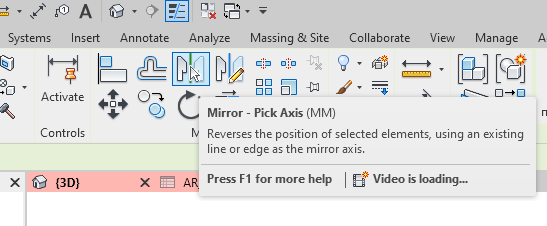
How does Revit handle mirroring?
From the users perspective, mirroring is a simple reflection of an element relative to an axis.
From the Revit API perspective, it is a change in the orientation of the elements local coordinate system, where:
- geometry remains visually correct;
- the logic of the "left or right" side changes;
- some parameters and dependencies may behave differently.
It is important to understand:
A mirrored element is not the same as a rotated element.
Rotation does not change the orientation of the elements coordinate system, but mirroring does.
Why is this critical specifically for windows, doors, and curtain walls?
Elements of the "Windows", "Doors", and "Curtain Wall Panels" categories are particularly sensitive to mirroring for the following reasons:
- Opening direction doors and windows may "open the wrong way";
- Schedules do not distinguish left/right versions: one thing on the floor plan, another in the schedule;
- The actual element may be manufactured in the wrong configuration, and quantity takeoff becomes incorrect;
- The error is detected too late during installation;
- Curtain wall panels are part of the "Curtain Wall" (walls) category and inherit mirroring.
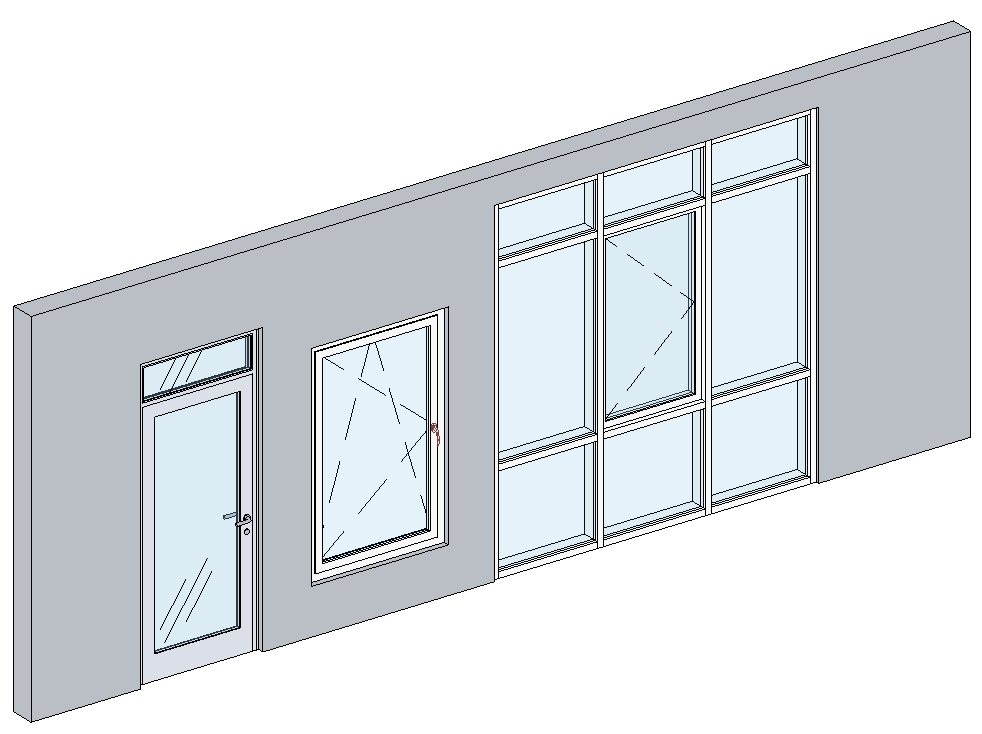
Visual examples of errors at the construction stage
The most painful stage may occur when drawings with such issues have already reached the construction site. The most common problems are:
- elements may have different installation clearances;
- openings and embedded parts end up on the wrong side;
- clashes with engineering systems occur.
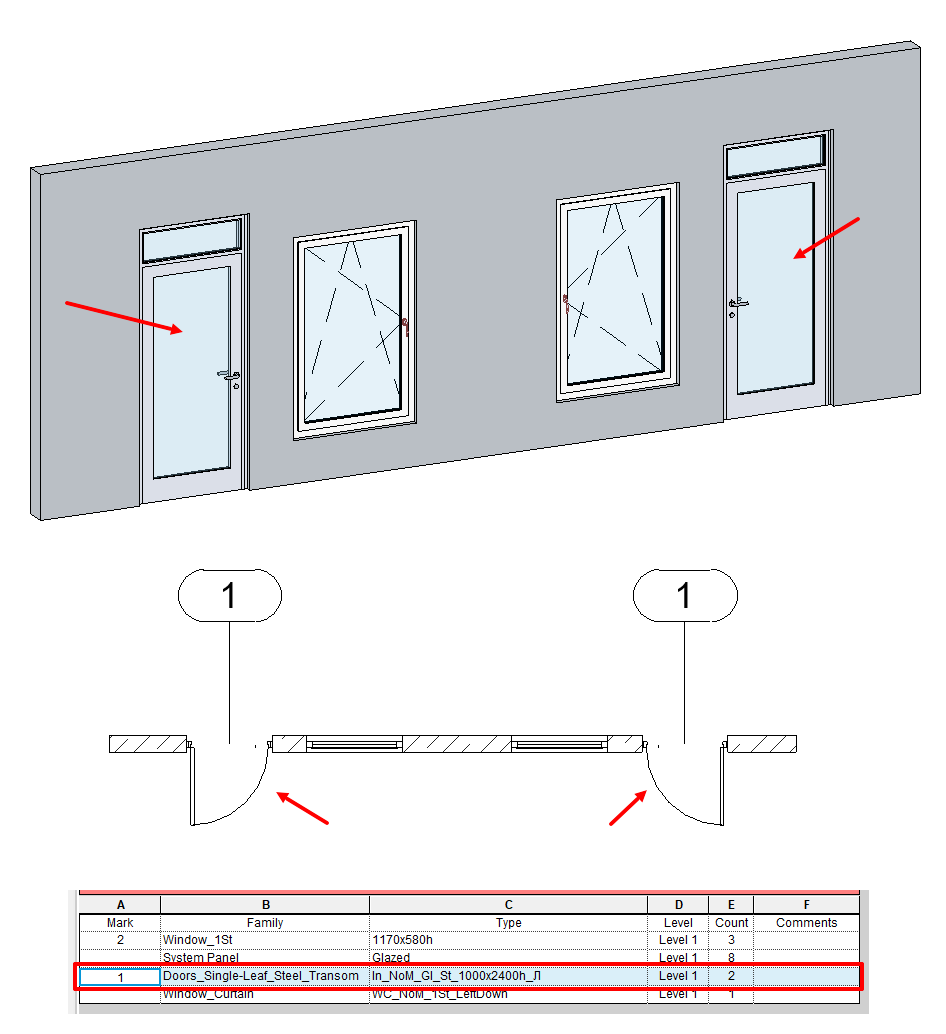
A clear example of how mirroring a door leads to incorrect quantity takeoff in a schedule on the floor plan, the two doors obviously should be tagged differently because they have different configurations, but the schedule does not see the difference and counts them as identical:
How to find problematic mirrored objects?
Revit does not directly report that an element is mirrored and cannot automatically display such objects in a schedule. The only option is to visually review all doors, windows, curtain walls and check whether their spatial orientation matches what is specified in their properties.
The solution lies in the Revit API
The studied categories in Revit have the necessary "Mirrored" parameter, which clearly indicates that the object has been mirrored, but it can only be accessed through the API. To solve this problem, we will use automation in Dynamo.
Dynamo is a visual programming environment that allows you to automate and parametrically manage a Revit model without writing large amounts of code. Key advantages:
- Work without traditional programming logic is assembled from nodes;
- Flexibility you can solve non-standard tasks that Revit "out of the box" cannot handle;
- Integration with the Revit API via Python if needed, you can create something "almost like a plugin".
Concept of the solution using Dynamo and Revit API
The solution is built according to the following principle:
- Collect elements of the required categories throughout the project doors, windows, and curtain wall panels;
- Filter out unnecessary objects of these categories window sills, flashings, etc.;
- Check the value of the "Mirrored" parameter for each element and select all with the value true;
- For the obtained mirrored objects, write the value "Mirrored" into the "Comments" parameter; for the rest, clear the "Comments" parameter (you can use any other system or shared parameter in Revit);
- Additionally output the IDs of mirrored elements to the Dynamo Player.
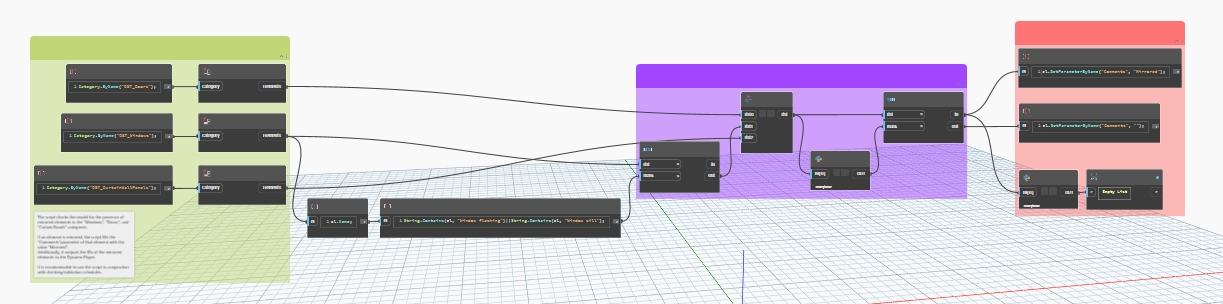
Writing the Dynamo script
1. Collect all elements of the required categories
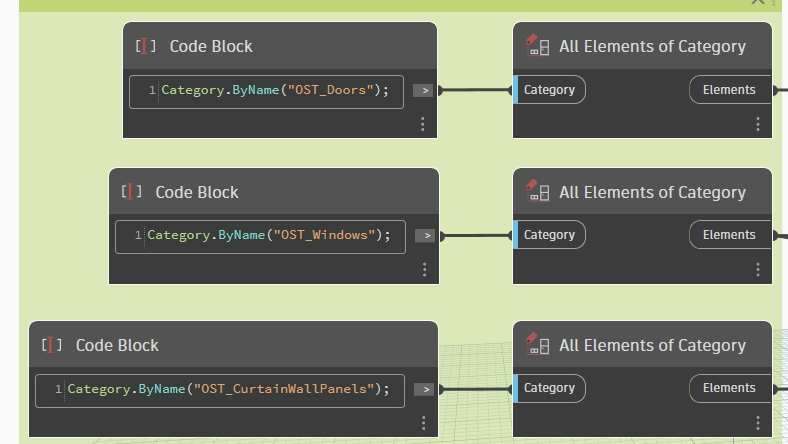
In the "Code Block" node, enter the following code and collect all elements using "All Elements of Category":
Category.ByName("OST_Doors");
Category.ByName("OST_Windows");
Category.ByName("OST_CurtainWallPanels");
2. Filter the obtained elements
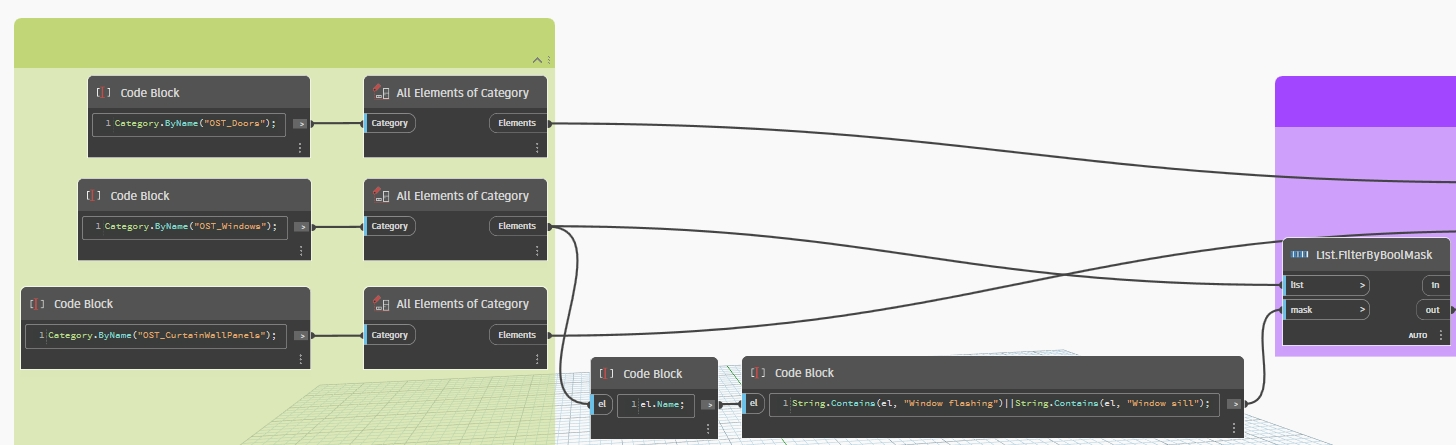
Feed the elements of the required category into a "Code Block" node, where we get the Type name as a string:
el.Name;
Send the resulting Type strings to the next "Code Block", where we search for types containing "Window flashing" or "Window sill":
String.Contains(el, "Window flashing")||String.Contains(el, "Window sill");
Then filter them by feeding the resulting true or false values into the "Mask" input of the "List.FilterByBoolMask" node. This produces the final list of elements to check for mirroring.
3. Get mirrored elements
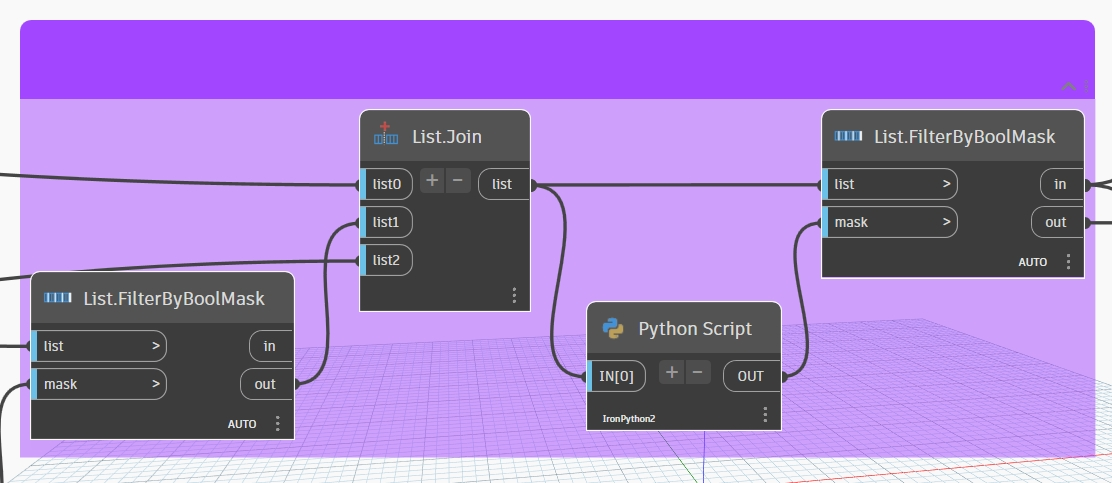
Now we need to get the value of the "Mirrored" parameter for the obtained elements. The Python Script node and the following code help us access it:
import clr
clr.AddReference('RevitAPI')
from Autodesk.Revit.DB import *

clr.AddReference("RevitNodes")
import Revit
clr.ImportExtensions(Revit.Elements)
clr.ImportExtensions(Revit.GeometryConversion)

items = UnwrapElement(IN[0])

def IsMirrored(item):
	if hasattr(item, "Mirrored"):
		return item.Mirrored
	else: return False


if isinstance(IN[0], list): OUT = [IsMirrored(x) for x in items]
else: OUT = IsMirrored(items)
In this case, it is easiest to use the Python Script node and define the logic directly. Then use the already familiar "List.FilterByBoolMask" to filter mirrored elements and obtain the two required lists.
4. Write data into element parameters
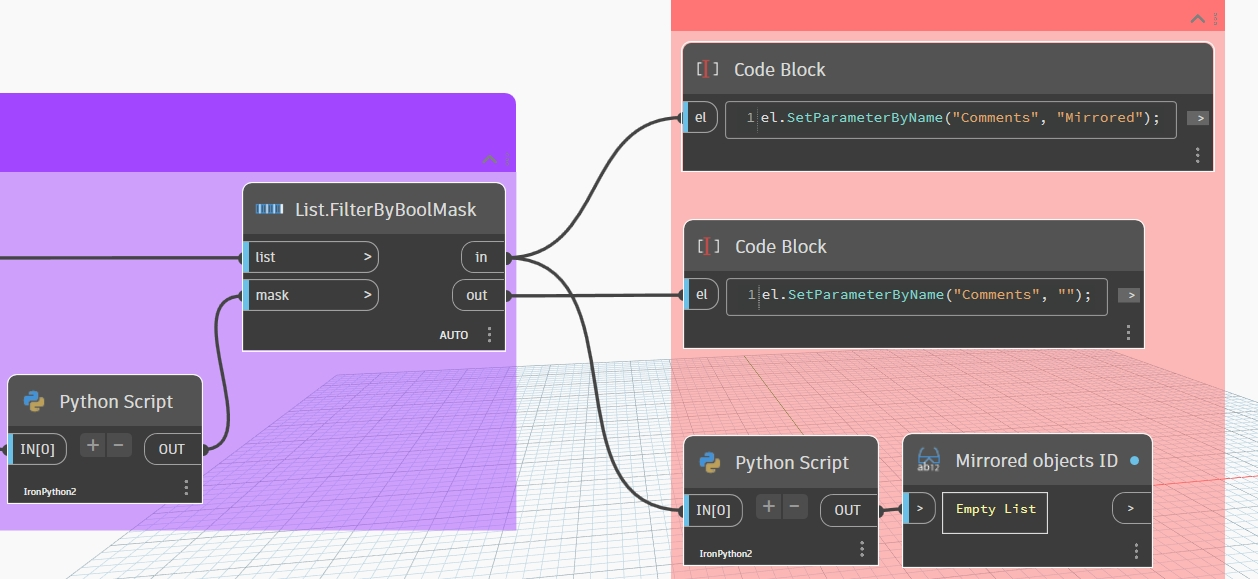
To write information about element mirroring into the "Comments" parameter, feed the problematic elements into a "Code Block" and use the method:
el.SetParameterByName("Comments", "Mirrored");
That is, we assign the word "Mirrored" to the comment of the mirrored element.
For non-mirrored elements, we clear the parameter value:
el.SetParameterByName("Comments", "");
5. Output IDs of mirrored elements
Feed the list of mirrored elements into another Python Script node to get their IDs:
import clr
clr.AddReference('RevitAPI')
from Autodesk.Revit.DB import *

clr.AddReference("RevitNodes")
import Revit
clr.ImportExtensions(Revit.Elements)

def GetId(item):
	if hasattr(item, "Id"): return item.Id.IntegerValue
	else: return None

items = UnwrapElement(IN[0])

if isinstance(IN[0], list): OUT = [GetId(x) for x in items]
else: OUT = GetId(items)
Then send the obtained IDs to the "Watch" node. Additionally, you can enable the "Is Output" mode in the properties of the "Watch" node to display the data in the Dynamo Player.
Processing the obtained results
To work with mirrored elements processed by the script, you can use filters and schedules, making them easy to find in a large project. For example, search using a prepared "Multi-Category" schedule with a filter condition "Comments" equals "Mirrored":
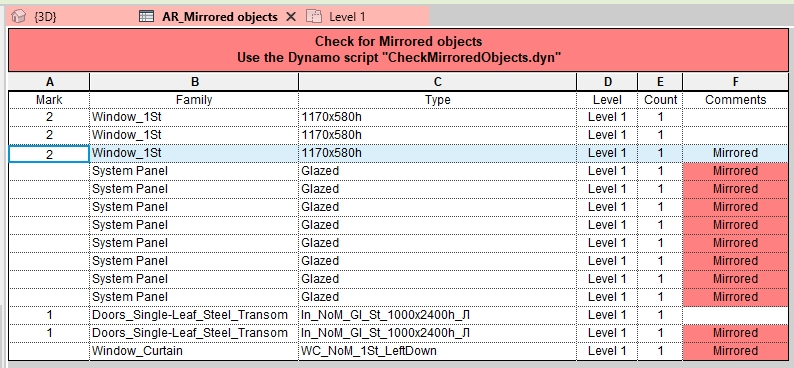
After obtaining such a list, mirrored objects are most often corrected manually.
Conclusion
Mirroring in Revit is not just a harmless modeling acceleration technique, but a potential source of systemic errors that may remain unnoticed for a long time. This is especially critical for windows, doors, and curtain wall panels, where the element orientation directly affects schedules, manufacturing, and installation.
Using Dynamo in combination with the Revit API allows you to bring this hidden issue to the surface: automatically detect mirrored elements, clearly tag them, and control them through schedules.
Implementing such validation scripts is a step toward a more reliable BIM model, reduced construction risks, and improved documentation quality overall.