Guardix icon

Guardix – Scheduled BIM Backups

Automated incremental backups for Revit, families, and AutoCAD files. Profile-driven, runs silently on a schedule, retains the versions you choose.
FreeRevitWindowsArchitecture
4 downloads
Guardix – Scheduled BIM Backups

Key Features

Scheduled Runs
Native Windows Task Scheduler integration – daily or hourly triggers, headless execution.
Incremental & Retention
Only changed files are copied. Configurable retention keeps the latest N versions per file.
Network & UNC Support
Back up to local disks or \\server\share targets. Credentials encrypted via Windows DPAPI.
8 Languages
Interface available in English, Russian, Spanish, French, German, Japanese, Traditional Chinese, and Simplified Chinese

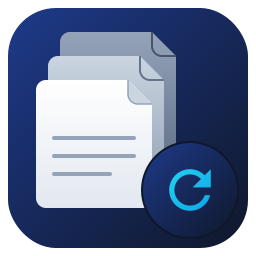
See Guardix in Action

How to Use

  1. 1
    Install Guardix
    Run the installer. Guardix opens to the profile dashboard.
  2. 2
    Create a Profile
    Click Add and give it a unique name – one profile per backup job.
  3. 3
    Configure Folders
    Add one or more source folders (local or UNC) and a destination folder. Set file extensions (.rvt by default) and optional exclude markers.
  4. 4
    Tune Retention & Compare
    Choose how many versions to keep, the filename pattern, and the change-detection mode (fast or hash).
  5. 5
    Schedule the Job
    Open the Schedule dialog, pick Daily or Hourly, set a start time and interval. Guardix registers a Windows Task at \APIBIM\Guardix_'<profile>'.
  6. 6
    Review Runs
    After each run, open the Run Report to confirm copied, skipped, and rotated files.

Inside a Backup Profile

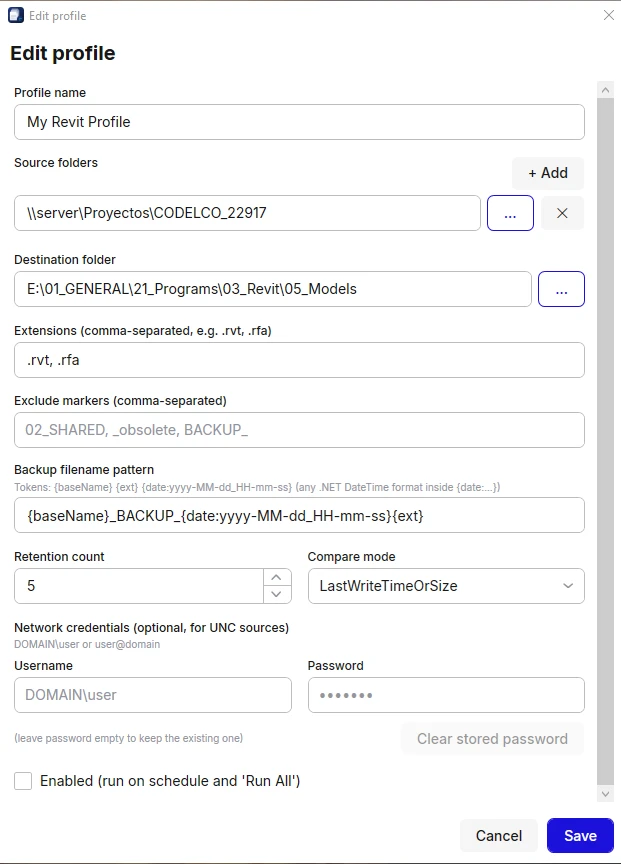
Each profile is a self-contained backup job. Configure these fields once in the Profile Editor – Guardix replays them on every scheduled run.

Profile Name
Unique identifier
Source Folders
One or more, local or UNC
Destination Folder
Where backups are written
Extensions
e.g. .rvt, .rfa, .dwg
Exclude Markers
Skip files containing these strings
Retention
How many versions to keep
Compare Mode
LastWriteTime+Size or SHA-256
Filename Pattern
{baseName}_{date:yyyyMMdd}{ext}
Network Credentials
DPAPI-encrypted, for UNC targets

Profiles live in settings.json under %LocalAppData%\APIBIM\Guardix\ – copy the file to share a profile across machines.
Inside a Backup Profile

Schedule a Profile

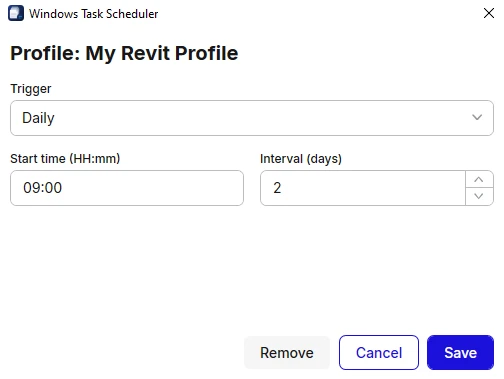
Open the Schedule dialog on any profile and pick one of two simple modes. Guardix registers it as a Windows Task and runs silently in the background.

Daily

Pick a start time. Guardix runs the profile once every day at that time.

Hourly

Pick a start time and an interval in hours. Guardix repeats the run throughout the day.

Each scheduled profile is registered at \APIBIM\Guardix_<profile> in Windows Task Scheduler – you can audit or trigger it from there.
Schedule a Profile

Troubleshooting

If a scheduled run fails, email info@apibim.com and attach the latest log from %LocalAppData%\APIBIM\Guardix\logs\