Lookup tables (CSV tables) are one of the most useful tools for building Revit families, and one of the easiest to get wrong. A quote in the wrong place, a column in the wrong order or the wrong file encoding is enough to break everything, and Revit's error messages don't always tell you why. In this article we go through the places where people trip up most often.
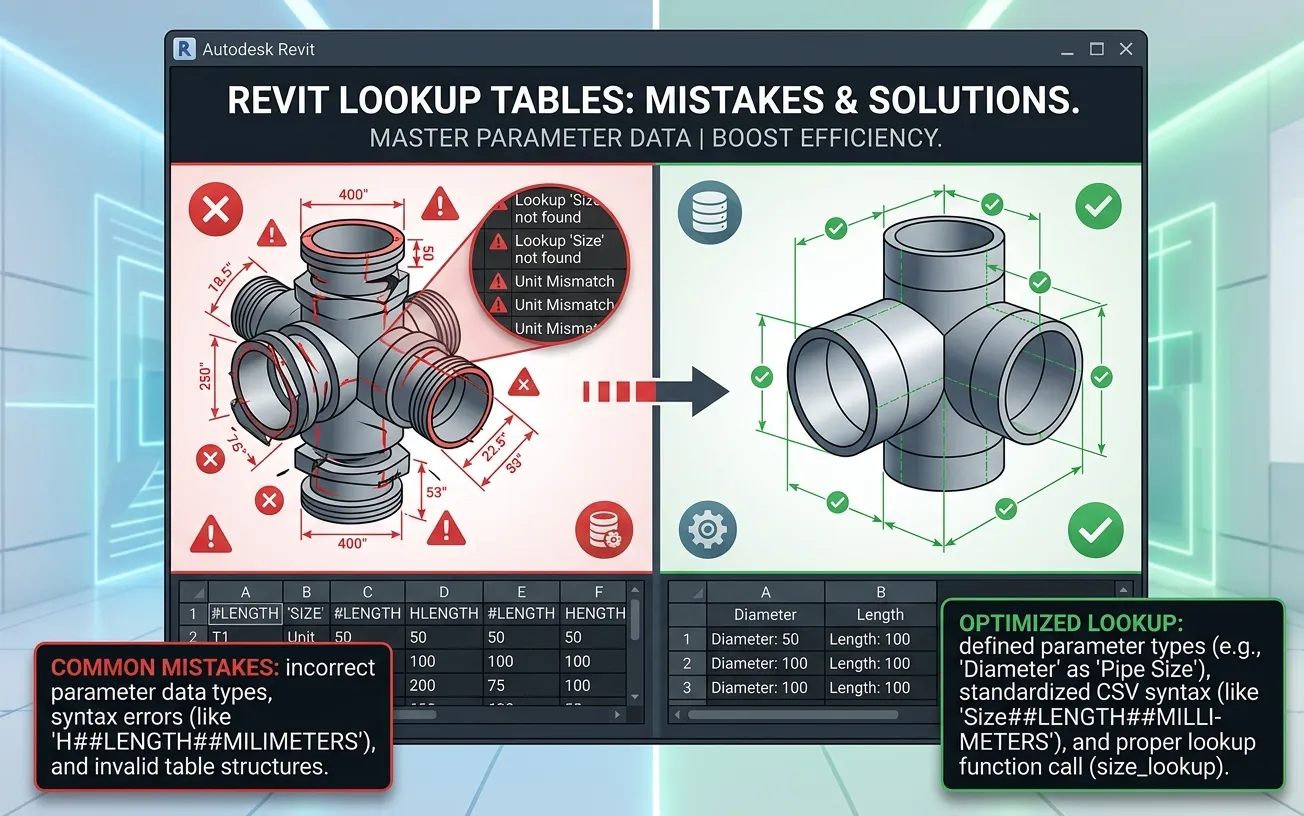
Quick reminder of how it works. A lookup table is a CSV file loaded into a family. The size_lookup() formula takes values from your family parameters, finds the matching row in the table and returns the data from the column you ask for.
We start with mistakes in the formula, then move on to mistakes in the table itself. This is the general structure of a formula that gets a value from a lookup table:
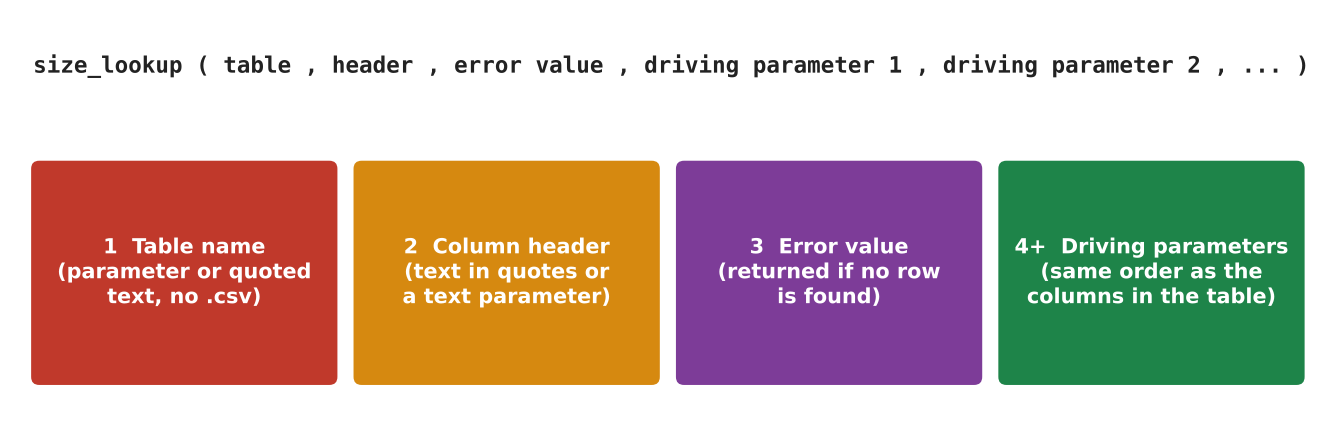
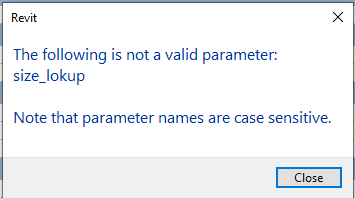
size_lookup() is the operator that calls values from a table. After it comes a strictly fixed structure. And yes, you can't make a typo in the operator name.
Mistakes in the formula
Reference to the table
There are two ways to point to a table. You can reference a text parameter that holds the table file name, or you can type the file name in quotes. In both cases, write it without the ".csv" extension. Obviously, the table has to be loaded into the family first. The safest way is to copy the name from Windows Explorer and paste it into the parameter or the formula.
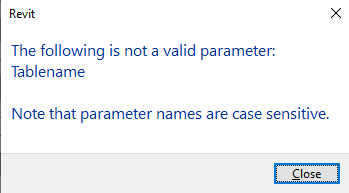
If you reference a parameter that doesn't exist (for example, because of a typo), you get the "Invalid parameter" error, because the family has no such parameter:
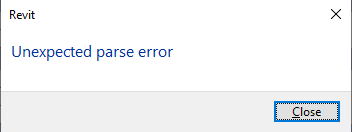
If the parameter exists but is not a text parameter, you get a parsing error. It is an unexpected one, because even Revit doesn't expect that from a user:
If the parameter is a text parameter but its value is not the name of a table, you get "Invalid input". Revit reads the value from the parameter, looks for a table with that name in the family, and doesn't find it, because it simply isn't there:
If you enter the correct parameter name, or the table name in quotes, Revit quietly accepts the formula and writes the value into the parameter. The quotes tell Revit that this is a table name and not some parameter:


A typo in the table name inside the formula gives "Invalid input" again:
Takeaway: don't mess up the reference to the table.
Parameter name in the table (the column)
A column name in a lookup table is built from three parts: the column header, the data type and the units. The separator is two hash signs ##. One column can hold only one data type, so only length, only text, and so on.
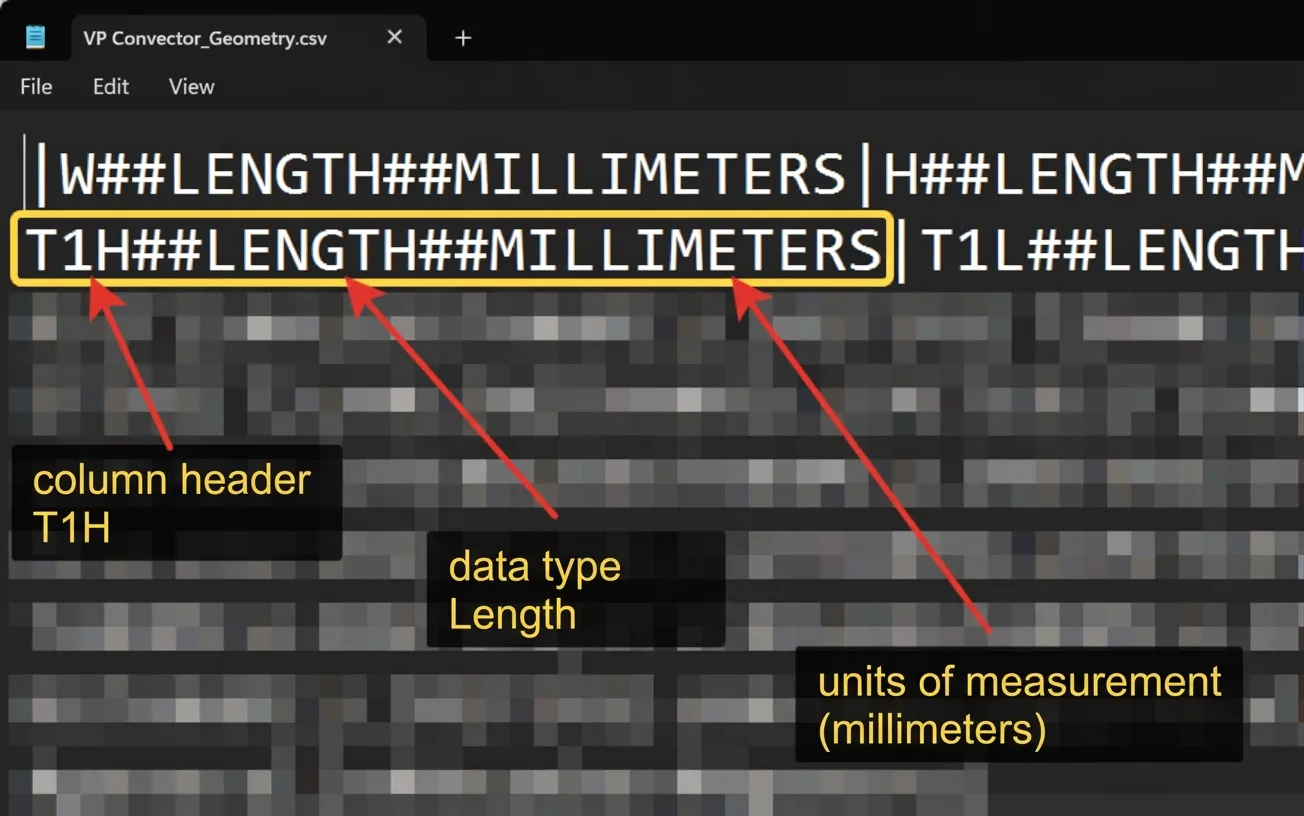
In the formula you always use only the column header, without the data type and units. Revit gets the data type from the family parameter you are writing the formula in, and units are convertible. For example, you can keep power in kilowatts in the table and show it in watts in the family. Revit converts it for you.
The main mistake here: people type the name of the Revit parameter, when they should type the column header from the lookup table.
It's easy to forget that you are already writing the formula inside a parameter. There is no point in naming that same parameter in the formula, Revit already knows which parameter we are working with. What you need to give Revit is the column header from the table, so it knows which column to search for the value.
Also, the column header in the table and the parameter name in the family can be different. They don't have to match at all. In the author's picture the header is T1H, while the parameter in the family is called "Supply_Offset from top of device". It works fine.
You can set the column header directly in quotes, or reference another parameter. That parameter must be a text parameter, of course.
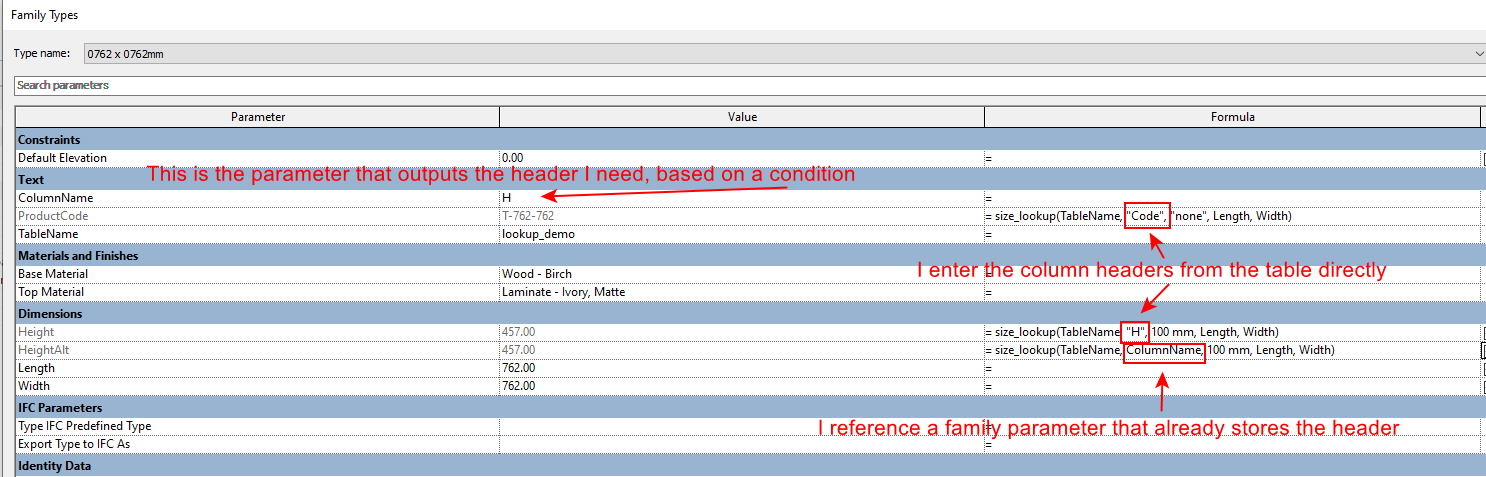
In the picture above there are several parameters where the header is taken straight from the table and written in quotes. That tells Revit: "for this family parameter, look for the value in this column of the lookup table".
Below that, in the formula for the convector power, the author doesn't use a table header. He uses the name of a family parameter that stores the header. He needs this to take the power value from different columns, depending on the fan speed the user chooses. This is how it looks in the table if you open it in Excel:
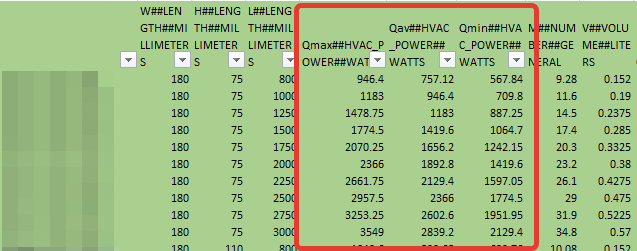
It's simpler to make three separate columns than to add one more driving parameter for the speed and make the table three times longer.
Nothing stops you from putting the whole condition that builds the header right inside size_lookup(). Go for it, nobody will come to check.
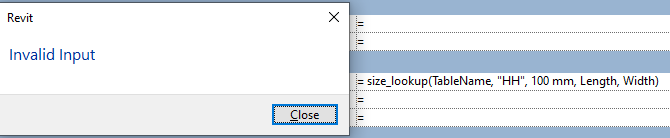
The remaining mistakes are typos or a wrong header. If the header doesn't exist, you get "Invalid input":
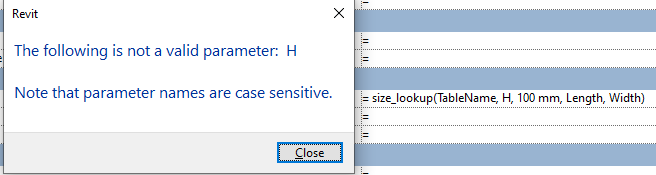
If you reference a header directly and forget the quotes, you get "Invalid parameter":
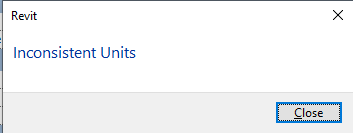
If the column data type is different from the data type of the parameter where you write size_lookup(), you get "Inconsistent units":
One more thing: a table can have more than one column with the same header. Don't do that. Revit will take the value only from the leftmost column with that header and ignore the others.
Takeaway: don't mess up the column header.
Value on error
The third argument in the formula is the value Revit puts into the parameter if it finds nothing in the table. For example, you look up a name for a valve, but that diameter isn't in the table. Revit finds no value, but it still has to write something into the parameter, because a parameter can't be empty. It will write the value you set in the formula.
The most common mistake: people use the wrong data type for this value.
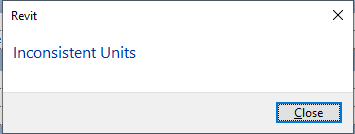
For example, you write a formula into a length parameter and put text in quotes as the error value, like "No data". This is wrong. The error value goes into a parameter with a specific data type, here it is length, so the error value must be a length too, not text. If you use text, you get "Inconsistent units":
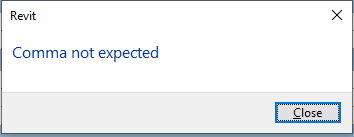
If you type a dash, Revit has no idea what is going on. It gives "Unexpected comma", because for Revit a minus is an arithmetic sign, so it waits for a formula and not for a lone operator:
So the error value must match the data type. For length, mass, angle and so on, use numbers. For text, use text. Revit can't show text in a numeric parameter. To notice that the formula returned an error, use some value that clearly can't come from the table.
I also recommend not using zeros or negative values in parameters that drive the geometry of the family. Try to choose values that don't break the geometry, otherwise the family will break inside the project, which is not fun.
Geometry can't have zero length, so don't put zeros in the error value. The author usually uses the same values as the smallest type of the family. That way you can see visually that something is off, and the geometry still gets built.
You can also reference another parameter that holds the error value, but again, watch the data types. You can even write formulas to generate the values, and the principle is the same: watch the data types.
Takeaway: don't mess up the value on error.
Driving parameters
This is the author's name for all the parameters that come after the error value. Revit uses them to find the exact row.
There are two main mistakes:
- People write column headers from the lookup table, when they should write names of parameters in the family.
- People mix up the order of the parameters in the formula. People get stuck here. They think: "the values are in the table, so I should reference the table headers". That's not right. The values are in the table, but how would Revit know which family parameters to match them with?
That's why you must give the names of the parameters in the family that hold the values you need.
For example, take a tee with three diameters, one on each end. The family has three parameters: DN1, DN2, DN3. The lookup table also has three columns, let's say with headers d1, d2, d3, plus a column with the name. In the formula you write the names of the family parameters. Revit takes the values from these parameters and searches for them in the table, in the columns d1, d2, d3. When it finds a match, it returns the name from the table into the parameter.
If you put the table headers in the formula instead, what would Revit compare them with? Which family parameters? It doesn't know, because we never told it. That's why you give the family parameters, not the headers.
In the formulas below, the driving parameters are the width and height of the convector. These are family parameters. Revit takes their values and searches for them in the table. When it finds them, it looks at the values in the columns T1L, T2L and so on, and writes them into the family parameters.

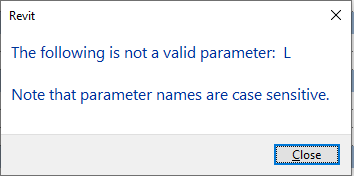
If you use table headers and the family has no parameters with those names, you get "Invalid parameter":
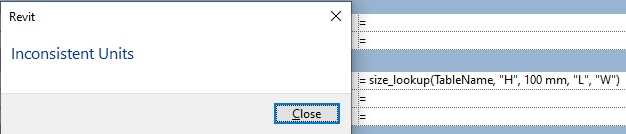
If you use the headers in quotes, you get "Inconsistent units", because Revit expects length parameters and not text:
You can also type actual values here. The formula will work, but of course only for those values:

The next mistake is about the order of the parameters. More on that in the next part about building the table. The short version: the family parameters in the formula must be listed in the same order as the columns in the table, and in the table they always start from the second column. The tee example in the next part shows why this matters.
Takeaway: don't mess up the driving parameters.
Mistakes when building the table
Here are the mistakes that seem to be the most common.
Wrong column order
A lookup table has a strict column structure. Without it Revit simply couldn't read the table.
The first column has no header, but you can store text in it. Before Revit 2018 or 2019 it was the only column where you could store text data.
From the second column onward come the driving parameters. These are the columns that narrow down what we are looking for. For a tee with three diameters, you need three columns, one for each diameter. Then Revit can tell exactly which tee you want.
For example, say you have tees 15x15x15, 20x20x20, 20x15x20 and 20x15x15. If there are only two driving parameters, Revit can't tell a 20x15x20 tee from a 20x15x15 tee. It returns the value for the first tee with sides 20x15 that it finds, and that is the one higher in the list. So you need three driving parameters, which means three columns.
If the tee also has a branch angle, there is more variety, so you add a fourth column for the angle. Only after these driving parameters can all the other columns come: article numbers, masses, names, geometry data and so on.
These other columns can go in any order, because we only read data from them by giving a specific header. The order doesn't matter here.
Takeaway: a lookup table starts with an empty header column with text, then the driving parameters, then everything else you read data from. Don't mess up this structure.
Wrong data types
Autodesk has a lot of people working there, and sometimes it feels like not all of them talk to each other, because two similar tools, lookup tables and type catalogs, work differently.
The most common stumbling block is the data type for whole and decimal numbers. In type catalogs it is simply ##OTHER##, without any units, which makes sense. But in lookup tables there is a special data type for numbers: ##number##general.
So if you exported types from a family and got all the parameters with their data types, you are not done. For numbers you need to change them to the right ones.
Also, type catalogs can, with some limits, use parameters with the data types "Family Type" and "Material". Lookup tables can't use them at all. The same goes for some other, less popular data types.
There is no "Yes/No" data type in lookup tables, but it's easy to work around. Make a column with 1 instead of "Yes" and 0 instead of "No", and then write the formula like this: size_lookup(Table, Header, 0, driving parameters) = 1.
When the table returns 1, the equality is true, so the checkbox turns on. When the table has no value or the value is 0, the equality is false and the checkbox turns off. A nice life hack.
Changed data types
This one is a real pain. Starting with Revit 2021, Autodesk changed some data types for no obvious reason, for example the ones for angles. It affects type catalogs too. Because of this, when you load families made for Revit 2019, an error pops up and the values don't load.
Lookup tables behave a bit better here. Everything works fine until you start exporting and editing something.
You can see how it is now and how it was before in the table by Pokhomov and Kovylin. This is not the original table but the author's own copy. To see the old data types, hover over the black corner of a cell or just select the cell.

Exporting a table and replacing delimiters
When you export a lookup table, Revit doesn't save the original file to disk. It rebuilds the table from scratch. It always uses a comma as the delimiter and doesn't wrap text in quotes. And before version 2021.1 it also deletes all Cyrillic characters.
Here is what happens next. A beginner exports the table, opens it in Excel, copies a row, edits it a bit, loads it back into the family, and gets an error if the table had text with commas:
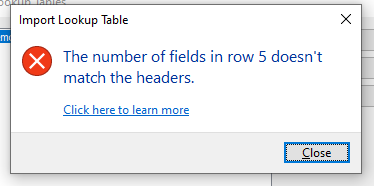
The reason is that Revit uses a comma as the delimiter on export and doesn't put the text in quotes. So the table used to have semicolons or | as delimiters, and now it has commas. The text used to be "Duct fan, power 100 W", and now there are no quotes, so Revit reads "Duct fan" and "power 100 W" as two separate columns.
But the number of headers didn't change, and that's why you get the error about the number of headers and fields (columns) not matching.
This is the table that was loaded into the family. The delimiter is |, so there were no quotes around the name:
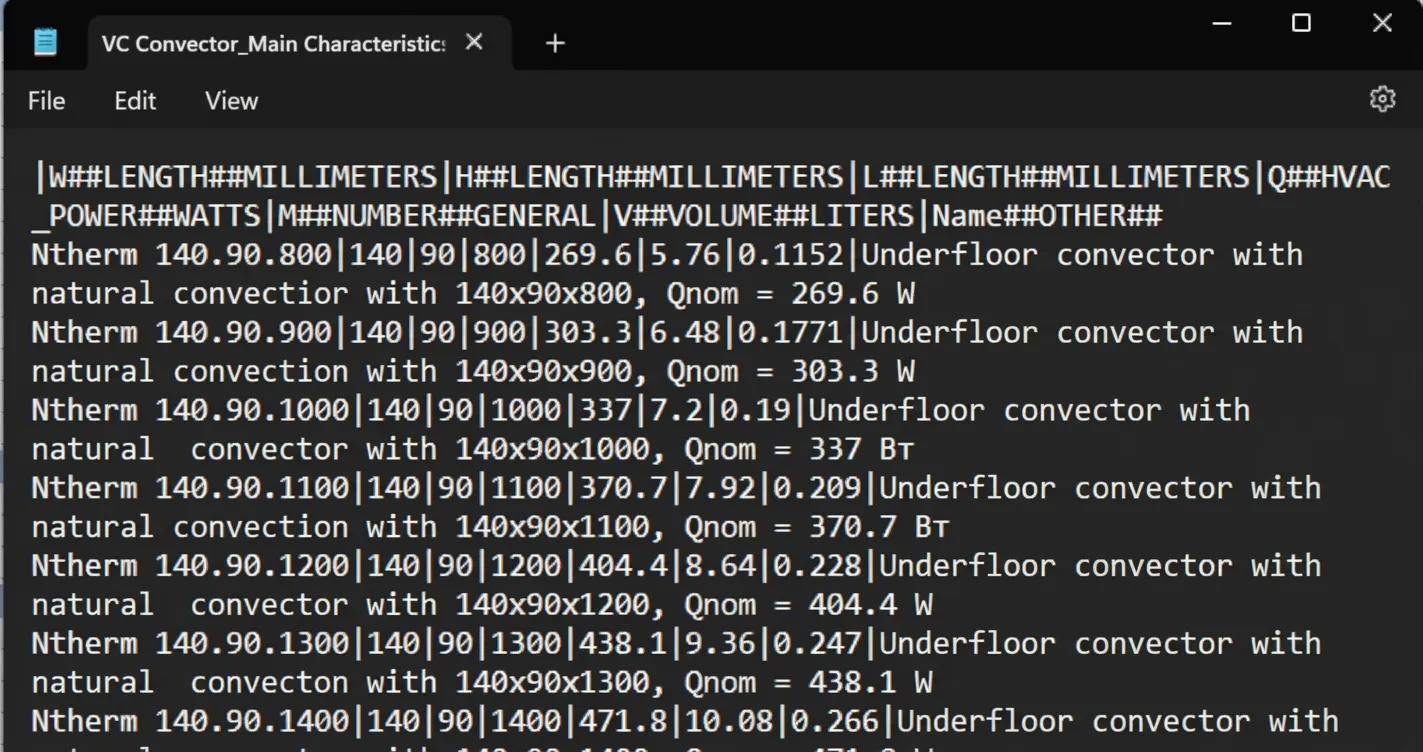
And this is how it looks after export from Revit. The numbers look awful, there are commas everywhere, and the name has no quotes even though it has a comma inside, which is exactly what confuses Revit:

That's why you usually need to clean the table up after export.
Quotes and how they affect the table
Even if you use ; or | as delimiters, quotes can still show up in the text, for example as inch marks. In any table, a quote can have two roles: the boundary of a text, or just a character.
So if a quote is used as an inch mark, you need to escape it. That means turning a boundary quote into a regular character. You do it by putting one more quote in front of it.
For example, take this name: Widescreen monitor 27"
If you write it like this in the table, loading may not show any error, but the value in the parameter will not be formed properly. The quote at the end is read not as an inch mark but as the start of a text. And everything in the table after it is treated as one big multi-line text.
So such quotes must be escaped, and the text should look like this: Widescreen monitor 27""
Allowed delimiters
Lookup tables allow only certain delimiter characters. Revit uses them to split the data into rows and columns. The author recommends always using the vertical bar |. It is rarely used in names and article numbers, and it is easy to read, unlike the semicolon, which tends to blend into the text.
If you use the wrong characters, you get this error when loading the table:
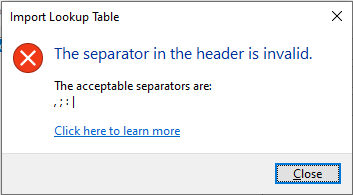
You can also get it if you forget that the first column of the table always has no header. Because of that, the very first character in the table is the delimiter. Revit reads it and understands how to split the data into columns and rows. If the first column has a header, you get this error, because Revit treats the first character of the table as the delimiter, and it can only be a comma, a semicolon, a colon or a vertical bar.
Table encoding and strange symbols
This matters for Revit versions before 2021. They supported the ANSI encoding, and only with it did Cyrillic display properly. If you save the table as UTF-8, which Windows usually tries to do when you save Cyrillic text in Notepad, you get weird symbols instead of letters. Also, ANSI doesn't support the diameter sign and a few other symbols.
Starting with Revit 2021 it got better, because UTF-16 LE is now supported. It stores Cyrillic and Spanish correctly and also the diameter sign. UTF-8 is still not a good choice, because it breaks Cyrillic.
Also, plain Revit 2021 and 2022 (without updates) have problems with Cyrillic in general, so install the hotfixes right after installing Revit.
Once more: before Revit 2021 use ANSI, after that use UTF-16 LE.
That is everything the author could think of about mistakes in lookup tables. Hope this article helps you in your work.
This article is a translation of the original post by Vadim Muratov. Published with the author's permission. Read the original (in Russian): Revit: ошибки в работе с таблицами выбора