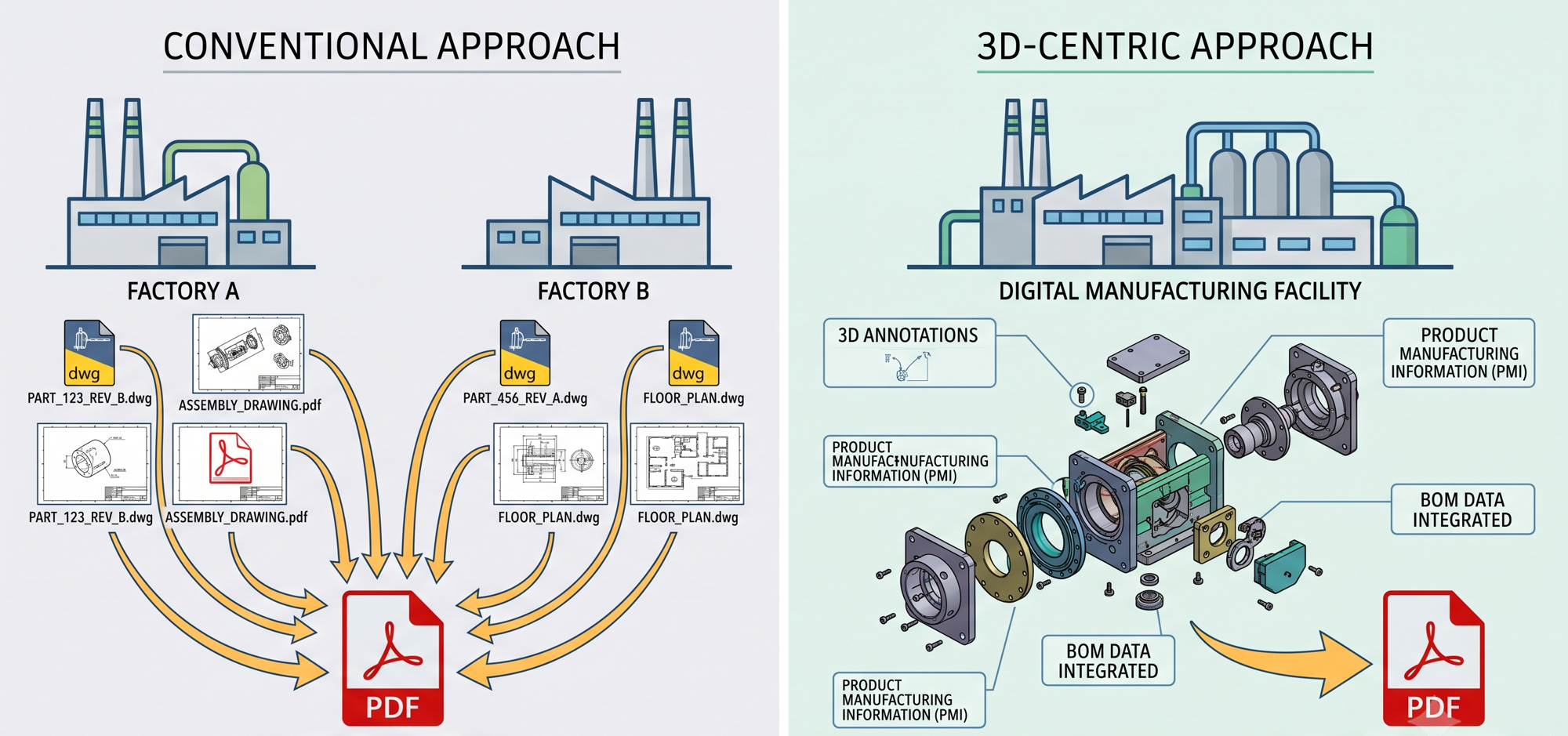
When you open an IFC model, have you ever stopped to think where that file actually goes, and who can access it?
Choosing (or building) a BIM viewer is always a trade-off between protecting your intellectual property, staying anonymous, getting good performance, and what infrastructure you are willing to maintain. In this article we walk through the three main viewer architectures and point out where the real risks are.
1. Server and cloud viewers
How it works: the file is processed, converted, stored or rendered on external servers, usually on the provider's cloud infrastructure.
Autodesk Viewer (Autodesk Platform Services / Forge)
Pros: it supports dozens of formats, and it puts no load on your own hardware.
Cons and risks: your file has to be uploaded to Autodesk servers, and you need an account.
Security and anonymity: low anonymity. Sending geometry and metadata to external cloud servers can create legal and information security problems if you work under a strict NDA.
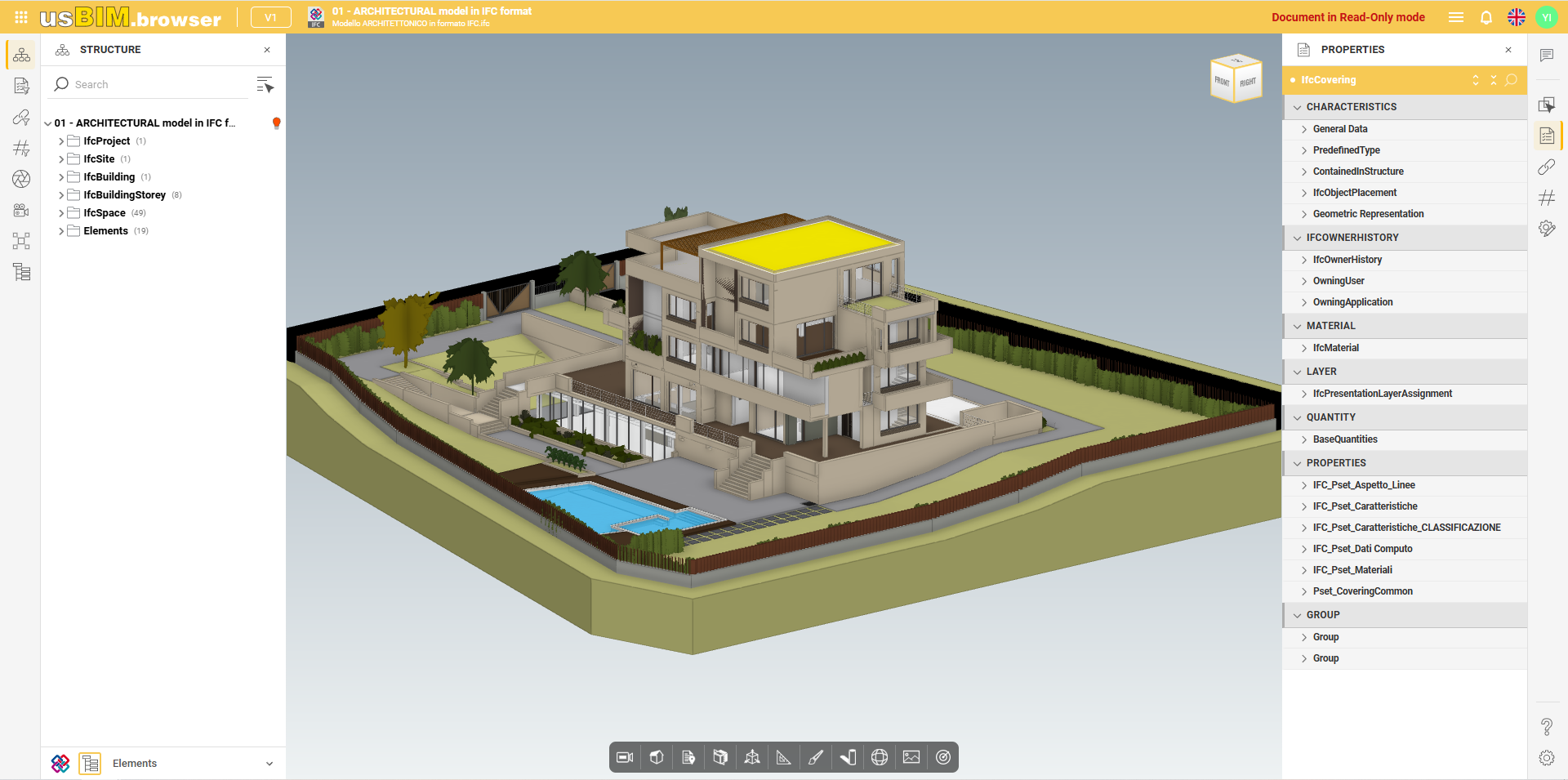
usBIM (ACCA software): usBIM.viewer and usBIM.platform
Pros: an integrated cloud BIM system with an online viewer for IFC and many other formats (BCF, DWG, point clouds and more), plus federation of models, clash detection and BCF management. The usBIM.viewer+ desktop app is a free IFC viewer and editor that can also share models to the cloud platform. It is a good fit if you want one environment for the whole BIM process.
Cons and risks: the online viewer works inside the usBIM cloud space, so your files are stored on ACCA's infrastructure.
Security and anonymity: the same logic as any cloud platform. You gain collaboration tools, and you give up control over where the file lives.
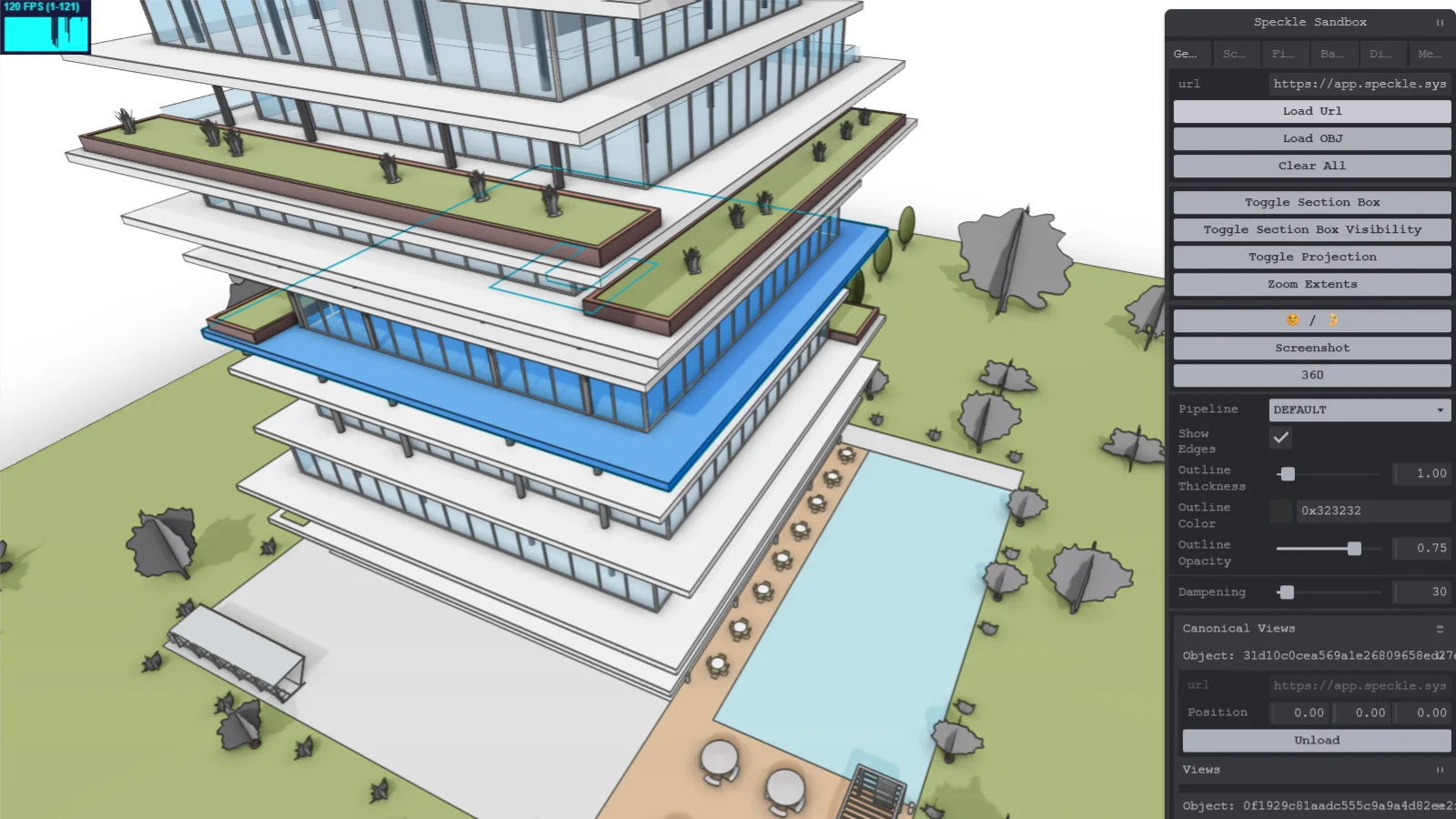
Speckle
Pros: an open source platform for AEC data. It is built around sharing and versioning model data between tools and teams, and you can use the hosted version or run your own server.
Cons and risks: the data lives on a Speckle server. If you self-host, that server is yours, which is a strong option for privacy but means you maintain it.
Security and anonymity: depends entirely on whose server you use. Anonymity is not the goal here, collaboration is.
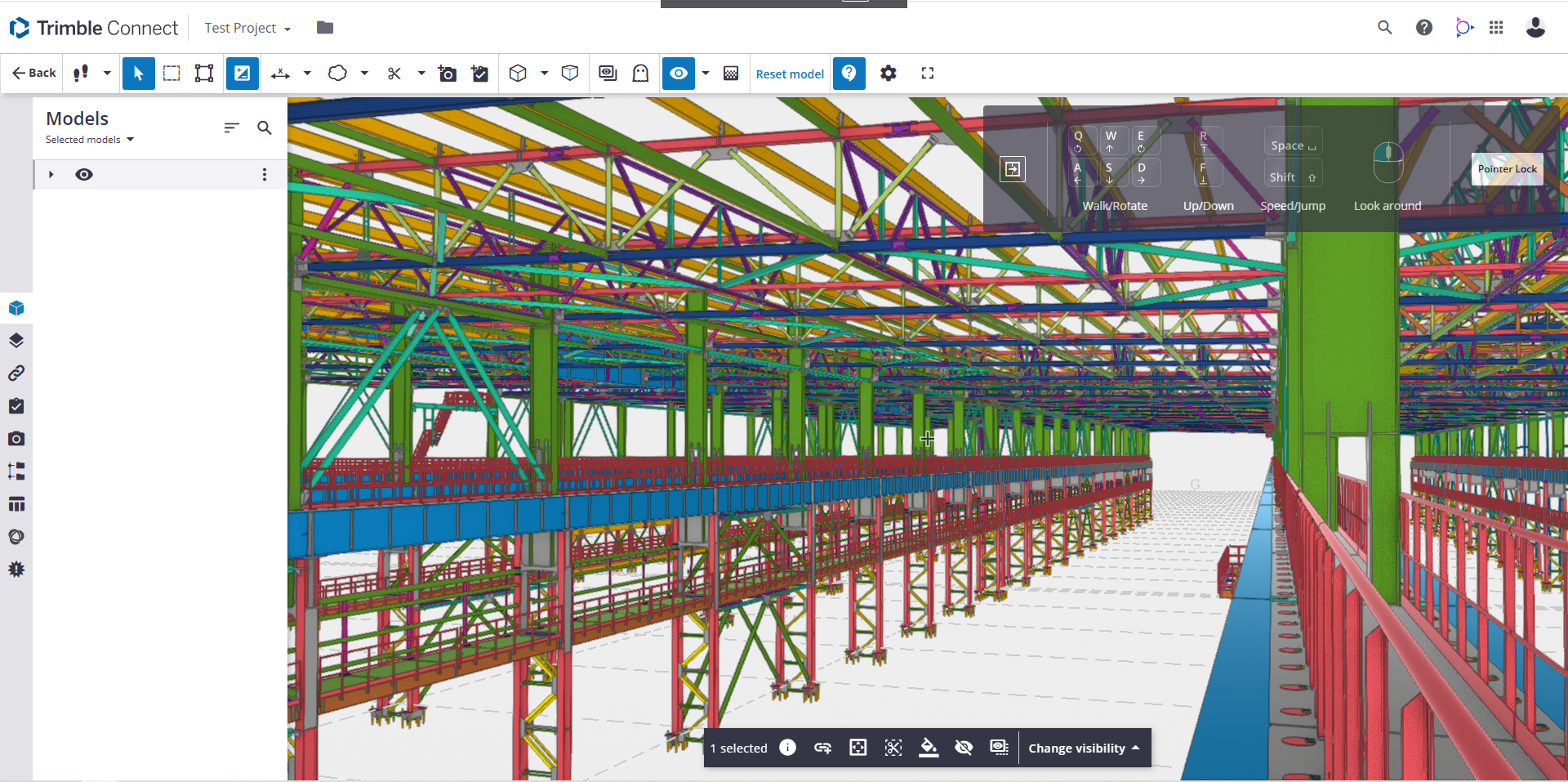
Trimble Connect
Pros: a mature collaboration platform with strong integration into the Trimble ecosystem (Tekla, SketchUp and others), good for teams that already work there.
Cons and risks: files are stored in Trimble's cloud and you need an account.
Security and anonymity: the same cloud trade-off as the others in this section.
NVIDIA Omniverse Server (Nucleus / Cloud Streaming)
Pros: centralized collaboration on heavy USD scenes, and server-side RTX streaming to practically any device.
Cons and risks: login is mandatory, data is stored centrally on a server or in the cloud, and the infrastructure is expensive.
Security and anonymity: security can be high inside a private on-premise setup, but there is no anonymity at all. You need accounts, licenses and someone to administer it.
When the cloud is the right call
Cloud viewers are not the villain here. They are the right choice when:
- there is no NDA or sensitive IP involved, for example a public or already shared project;
- several people need to work on the same model at the same time, with comments, issues and versions;
- you have no local hardware to spare, or you are on a laptop or tablet in the field;
- you want one place that holds models, documents and discussions together. The point is not that cloud is bad. The point is to make that choice on purpose, knowing the file leaves your machine.
2. Local desktop applications
How it works: the application is installed on your operating system. Parsing, computation and rendering all happen on your own machine, and your model files are not sent over the network.
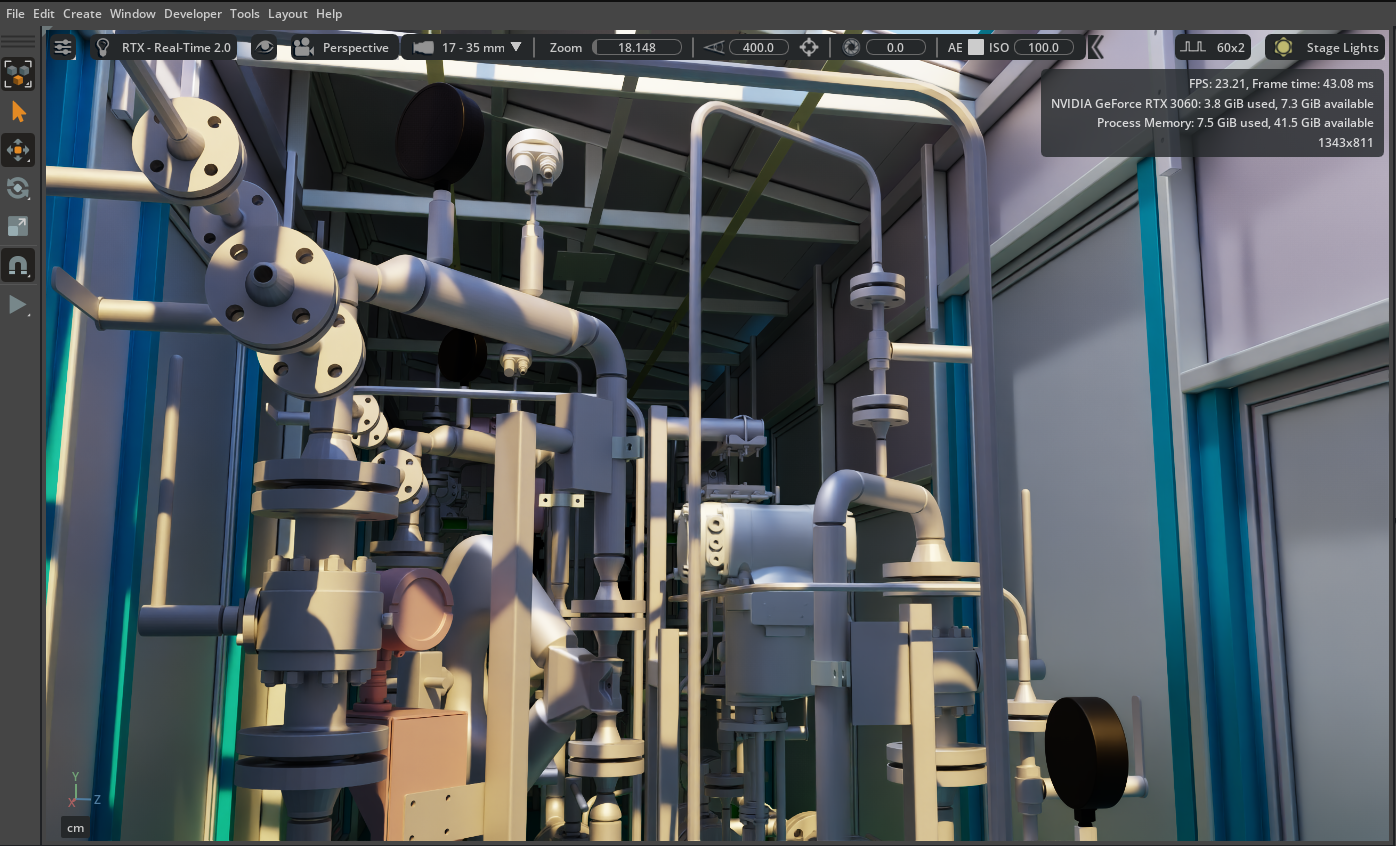
NVIDIA Omniverse Client (Local Kit App / USD Composer)
Pros: very powerful photorealistic RTX rendering and physics on a local workstation.
Security and anonymity: fully anonymous when you open files locally. Not a single byte of geometry goes to the cloud.
Cons: it needs top-end hardware (an NVIDIA RTX GPU) and a heavy software installation.
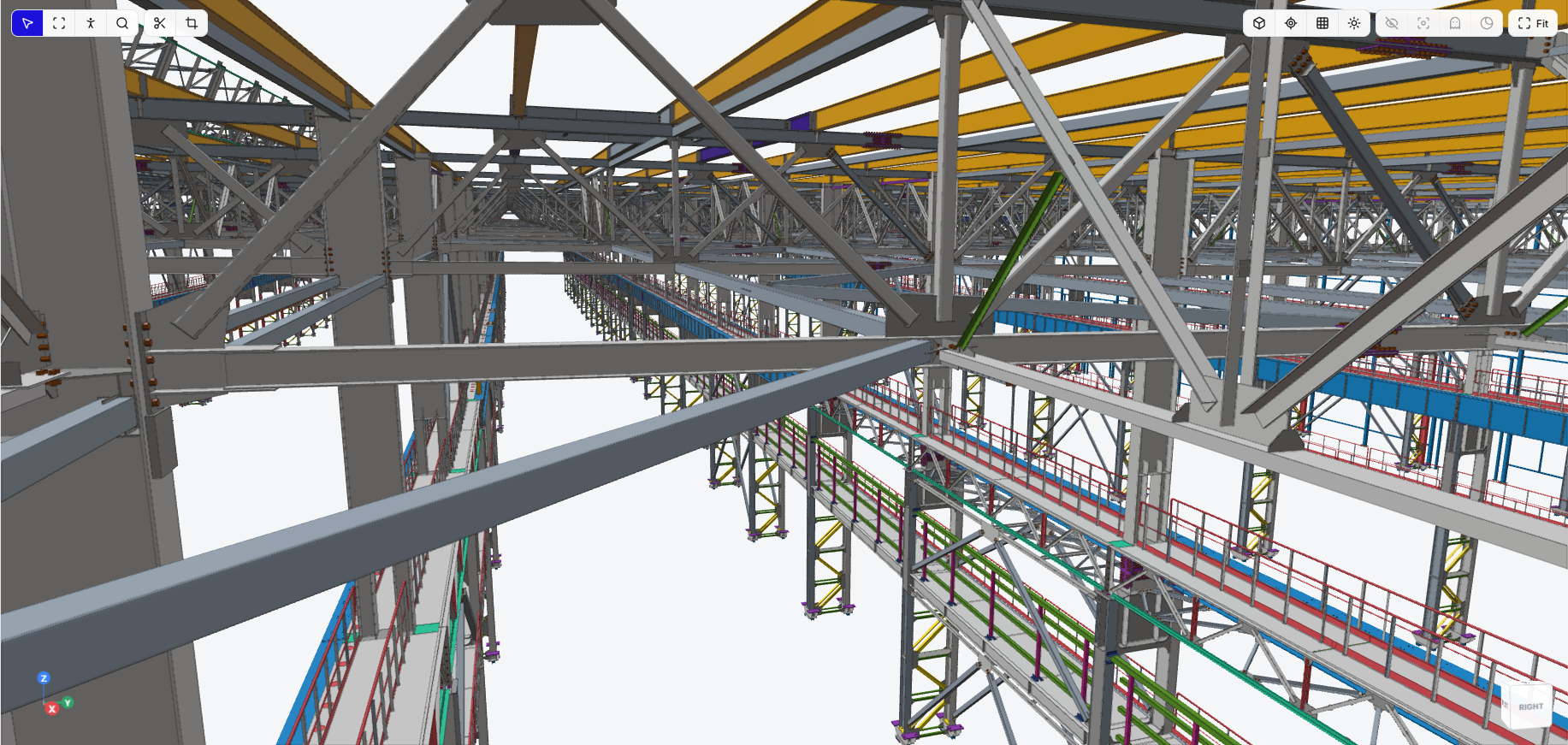
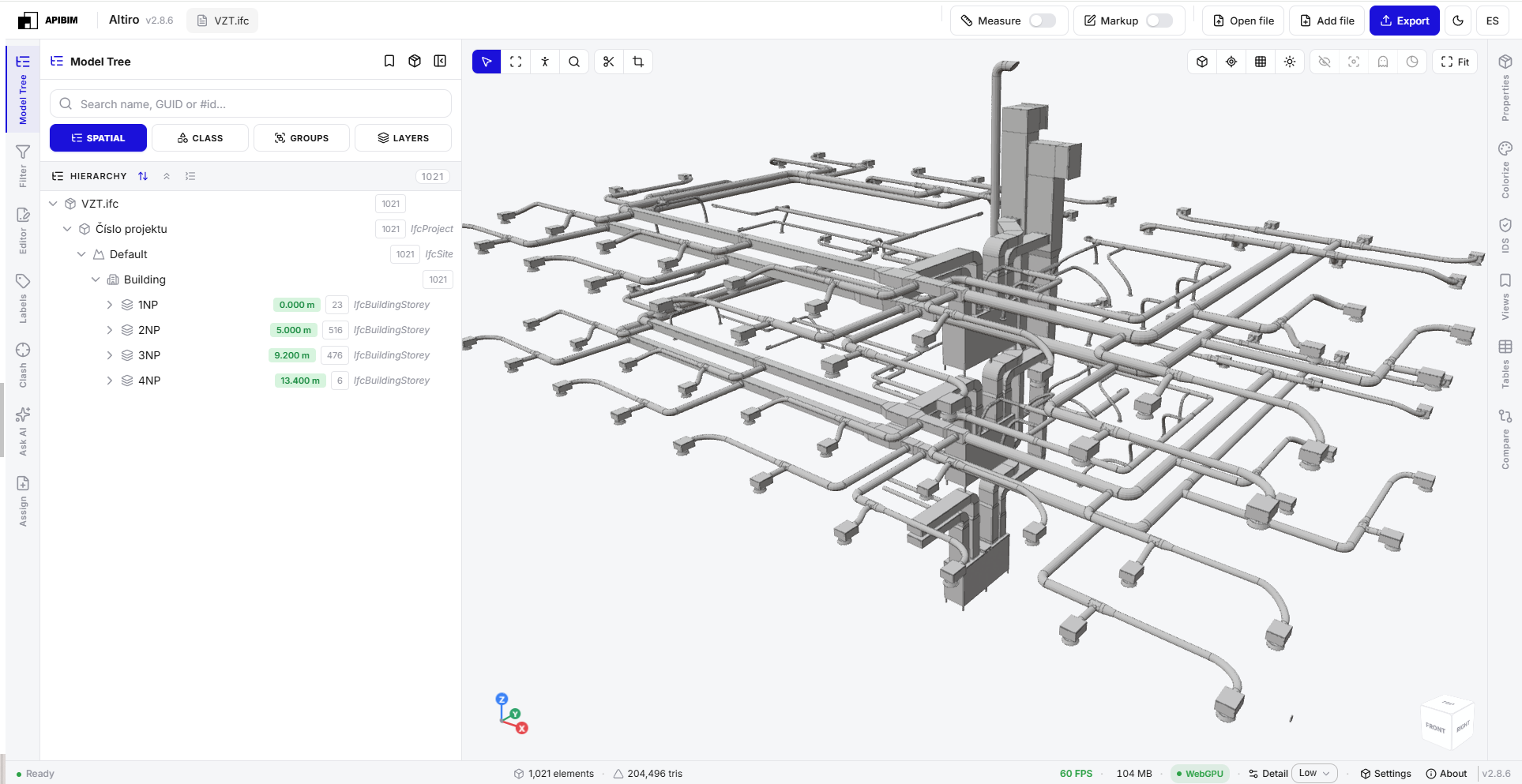
Altiro desktop
Pros: a native local app built on a multithreaded Rust engine. Its main advantage over most BIM tools is that it is cross-platform: macOS, Linux and Windows.
Cons: you have to install it. No collaboration
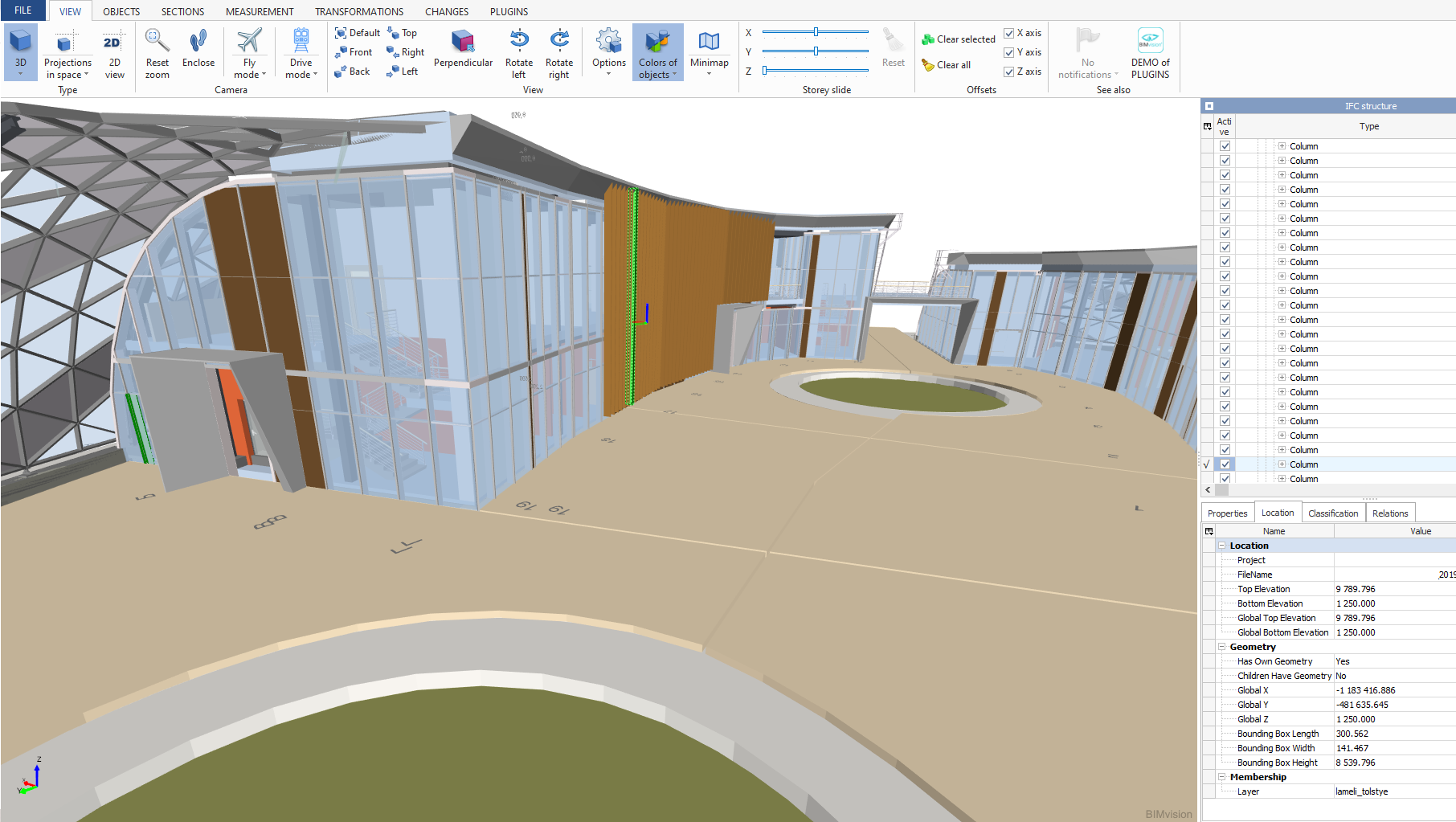
BIM Vision
Pros: a popular third-party tool with a rich plugin ecosystem (clash detection, quantities, sections), and viewing is free.
Cons: it only runs on Windows, and only viewing is free. Everything else, including the plugins where most of the useful functions live, costs money.
3. Browser-native viewers
How it works: these combine the convenience of the web with the privacy of a desktop app. Geometry parsing and rendering happen entirely in your browser, using WebAssembly (WASM) and WebGL/WebGPU.
Example: the web version of ifc.cl
Pros: the file never leaves your computer, and there is nothing to download or install. It opens in a second, in a browser, on any operating system.
Cons: you depend on the RAM and GPU resources your browser has available, and the browser memory cap limits how large a model can get.
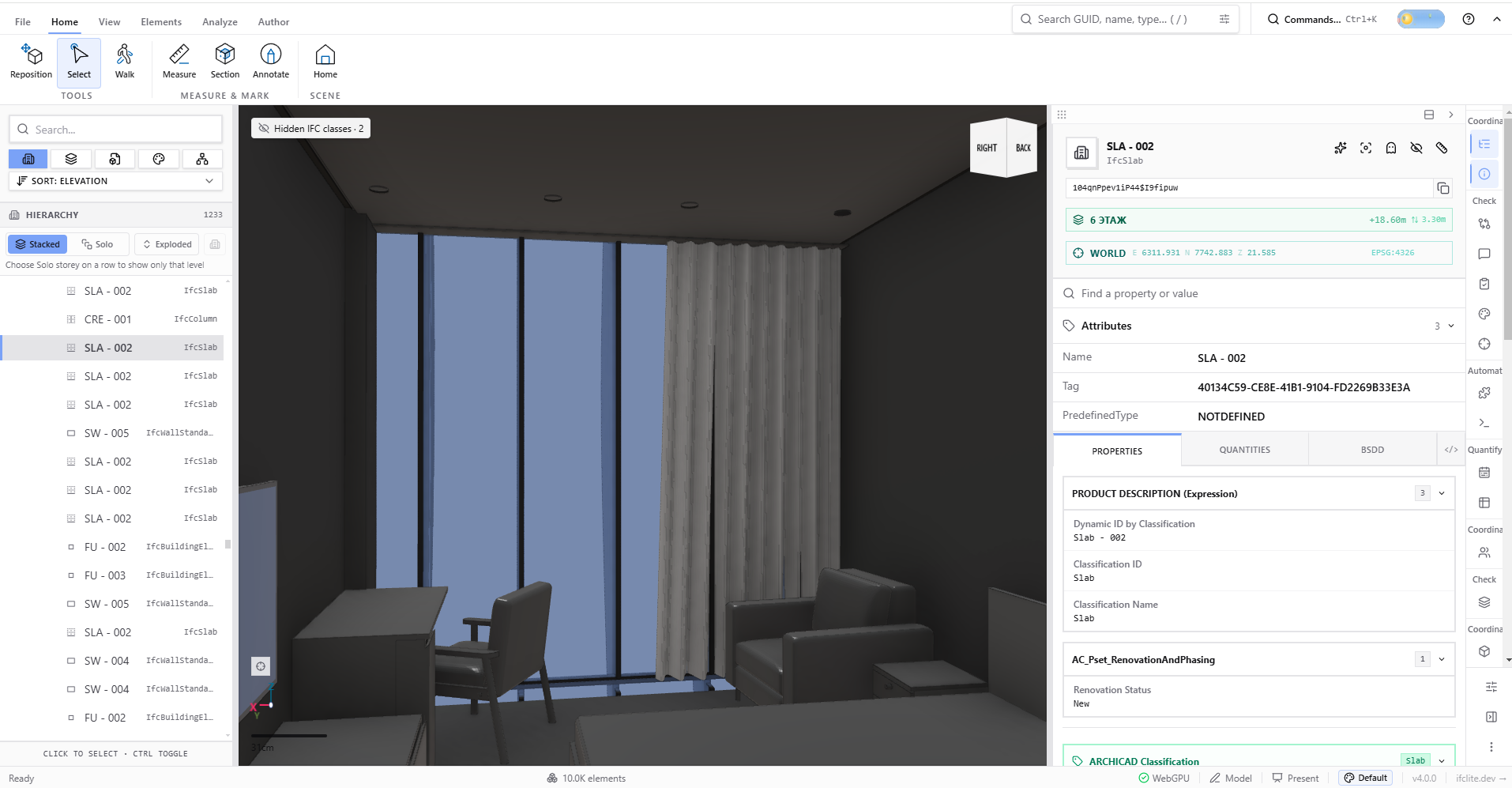
ifc-lite
Pros: an open source IFC engine and viewer with a WebGPU renderer. Being open source, you can read the code and verify what it does with your files. It is also the engine that our own tools build on.
Cons: it is a toolkit as much as a product, so the experience depends on how it is packaged and what it is embedded in.
Some real numbers
Talking about speed is easy, so here is what we actually measured with Altiro desktop on a Windows workstation (12 logical cores). The useful way to read these numbers is by geometry, not by seconds, because the triangle count is what really sets the load.
| Model | Size | Triangles | Time to open | Throughput |
|---|---|---|---|---|
| Mid-size project | 172 MB | about 5 million | 7 seconds (with geometry cache) | about 700,000 triangles per second |
| Large industrial project | 338 MB, 286,000 entities | about 50 million | about 102 seconds on first open, about 55 seconds on repeat opens | about 500,000 triangles per second on first open, about 900,000 on repeat |
| Federation of 12 models | 1.9 GB | n/a | geometry meshed natively in about 16 seconds | n/a |
Fifty million triangles is a very heavy model. Its geometry alone takes about 3 GB, which sits right at the 4 GB memory cap of in-browser WASM, and that is exactly why we built a desktop version. Natively, on all CPU cores, it opens in under two minutes the first time, and in under one minute after that.
For rendering, on an NVIDIA RTX 3060 at 1280x720 with 4x MSAA, a model of about 720,000 triangles runs at around 600 frames per second.
One more detail we find interesting: reading and parsing the file takes only about 1 second of those 55. Most of the remaining time goes into moving geometry to the GPU, and that is the part we keep optimizing.
Side-by-side comparison
| Tool | Type | Model file sent to a server | Account needed | OS | Install | NDA / IP |
|---|---|---|---|---|---|---|
| ifc.cl (web) | Browser | No, stays in the browser | No | macOS, Linux, Windows | No | Highest |
| ifc-lite | Browser, open source | No, stays in the browser | No | macOS, Linux, Windows | No | Highest, code can be audited |
| altiro desktop | Desktop | No, stays on your PC | No | macOS, Linux, Windows | Yes | Highest |
| BIM Vision | Desktop | No, stays on your PC | No | Windows | Yes | Highest |
| NVIDIA Omniverse Client | Desktop | No, local | No | Windows, Linux (RTX GPU required) | Yes (Omniverse Kit) | Highest |
| Autodesk Viewer | Cloud | Yes | Yes | macOS, Linux, Windows | No | Needs an audit |
| usBIM (viewer / platform) | Cloud, plus free desktop viewer+ | Yes, to the usBIM cloud space | Yes | Web (any OS) | No for web, yes for viewer+ | Needs an audit |
| Trimble Connect | Cloud | Yes | Yes | Web (any OS) | No | Needs an audit |
| Speckle | Cloud or self-hosted | Yes, to a Speckle server (yours if self-hosted) | Yes | Web (any OS) | No | Depends on whose server it is |
| NVIDIA Omniverse Server | Cloud or on-premise streaming | Yes (Nucleus / Cloud) | Yes (login, license) | macOS, Linux, Windows (streaming) | No | High if on-premise |
How to check any viewer in five minutes
You do not have to trust anyone's marketing. This check works for any viewer:
- Open the Network tab. In your browser, open DevTools, go to Network, then load a model. Watch what is sent after the app has loaded.
- Go offline. Turn off your internet and open a file. If it works, the model is processed locally.
- Look at what else is sent. Even if your model stays local, check whether the viewer sends information about you: analytics, usage events, identifiers. Ask what it collects and whether it is stated openly.
- Check for an account and a storage policy. If an account is required, find out where files are stored, for how long, and who can access them. For desktop apps, a firewall or a network monitor does the same job as the Network tab.
So, which one should you pick?
- You need to open an IFC quickly, stay anonymous and keep files off any server: ifc.cl in the browser.
- You need to open very large models, on macOS, Linux or Windows, without relying on the internet: Altiro desktop.
- You need local photorealistic RTX rendering without sending data anywhere: NVIDIA Omniverse Client.
- You need cloud collaboration, versions and issues for a team: usBIM, Speckle, Trimble Connect or Autodesk Viewer, depending on your ecosystem.
There is no single right answer. What matters is knowing where your file goes before you open it, especially when the model is covered by an NDA.